
The default camera in F1 2021 is made to look good in a trailer. It is wide, it shakes, and it moves around when you brake. None of that helps you drive.
Ten minutes in the camera menu fixes it. Here are the values I would start from, and what each slider does.
Best F1 2021 camera settings
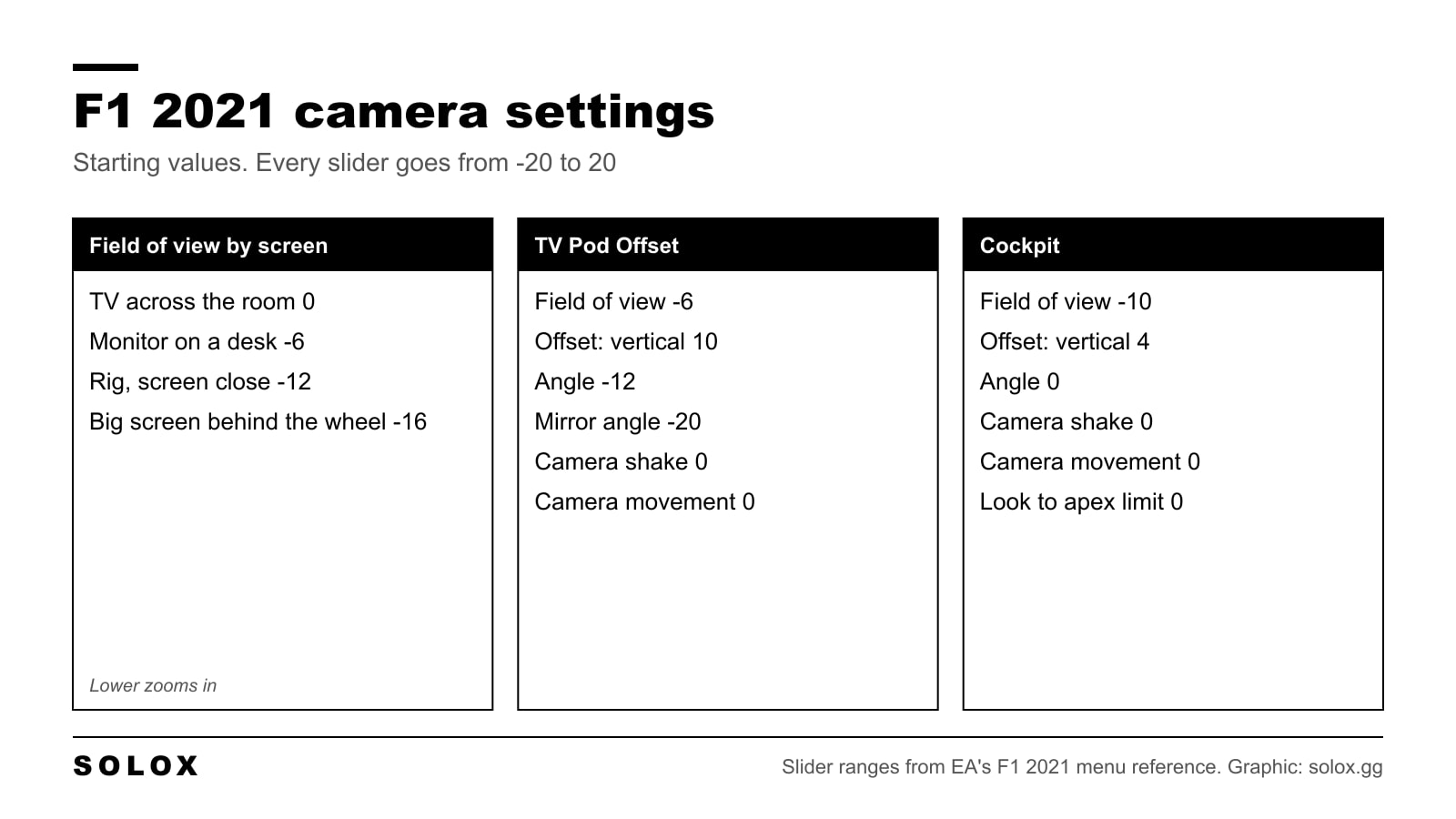
For the TV Pod Offset camera, the one most people race with:
| Setting | Game default | Start with |
|---|---|---|
| Field of View | 0 | -6 |
| Offset: Lateral | 0 | 0 |
| Offset: Horizontal | 0 | 0 |
| Offset: Vertical | 0 | 10 |
| Angle | 0 | -12 |
| Near Clip Plane | 0 | 0 |
| Mirror Angle | -20 | -20 |
| Camera Shake | 20 | 0 |
| Camera Movement | 20 | 0 |
| Look to Apex Limit | 4 | 0 |
| Halo Column | On | On |
The defaults are the ones EA lists for the game. For the plain TV Pod camera, use the same values.
The idea is simple. The camera sits a bit higher and points down more. You see the track right in front of the front wheels, and the horizon moves up the screen.
How to change the camera in F1 2021
- Open Settings from the main menu, or pause on track.
- Go to Camera Customisation.
- On the Camera line, pick the camera you drive with. Each camera keeps its own values.
- Move the sliders.
- Go back on track and do three laps before you judge it.
F1 2021 added two lines at the top of this menu:
- Car-Specific Settings. Enabled or Disabled. When it is disabled, the game uses your global camera on every car.
- Edit Camera Settings. Global, or the car you are in. This is where you choose if the changes are for all cars or only for this one.
This is useful. The airbox and the halo are a little different on every car, so a camera that is perfect on the Mercedes can have bodywork in the way on the Haas. Set a global camera first. Then, in career, make one for your own car.
What each slider does
| Setting | Range | What it does |
|---|---|---|
| Field of View | -20 to 20 | How wide the picture is. Lower zooms in |
| Offset: Lateral | -20 to 20 | Moves the camera left or right |
| Offset: Horizontal | -20 to 20 | Moves the camera forward or back |
| Offset: Vertical | -20 to 20 | Moves the camera up or down |
| Angle | -20 to 20 | Tilts the camera up or down |
| Near Clip Plane | -20 to 20 | Hides bodywork that is very close to the lens |
| Mirror Angle | -20 to 20 | Tilts what the mirrors show |
| Camera Shake | -20 to 20 | Vibration on bumps and kerbs |
| Camera Movement | -20 to 20 | How much the camera moves with the forces on the car |
| Look to Apex Limit | 0 to 15 | How far the camera turns to the apex by itself |
| Halo Column | On or Off | On hides the central pillar of the halo |
The ranges are from EA's menu reference for the game.
Best FOV for your screen
There are no degrees on the slider. It is a scale, and 0 is the middle. The right value depends on how big the screen is and how far you sit from it. The closer and bigger the screen, the lower you can go.
| Your screen | Field of view to start from |
|---|---|
| TV across the room, on a pad | 0 |
| Monitor on a desk | -6 |
| Rig with the screen close to the wheel base | -12 |
| Big screen right behind the wheel | -16 |
I would not go above 4 on any screen. A wide field of view looks fast, but everything ahead of you gets small. The braking board is tiny, the apex is tiny, and you judge distance worse.
Why a lower FOV is better
In a real car you do not think about field of view. Your eyes see the corner at its real size, and your brain knows how far away it is. That is how you brake at the same point every lap.
On a screen, a wide field of view squeezes a lot of world into a small rectangle. The corner looks further away than it is. So you brake by the board and not by feel.
Zoom in, and three things happen:
- Distances look right. The corner grows on the screen at a rate that makes sense. You can brake later with more confidence.
- The apex is bigger. You place the car to the centimetre and not to the half metre.
- The car feels slower. That is normal. You see less at the sides, so the sense of speed drops. Your lap time does not.
What you pay is side vision. In wheel to wheel racing, use the mirrors and the proximity arrows more.
Shake, movement and look to apex
These three are the first thing I would change, before the field of view.
Camera Shake is at 20 by default. The picture vibrates on every kerb. It tells you nothing you can drive on. Set it to 0. EA lists the slider down to -20, so if you still see vibration at 0, keep going down.
Camera Movement is also at 20 by default. The camera leans forward when you brake and back when you accelerate. Your braking board moves on the screen at the exact moment you need it to stay still. Set it to 0, or lower if you still see the camera lean. If the picture then feels dead to you, try 5.
Look to Apex Limit turns the camera into the corner for you. The default is 4, the maximum is 15. On the TV Pod camera I would set it to 0, so the picture only moves when the car does. On the cockpit camera a small value like 4 is fine if you like it.
Cockpit camera settings
| Setting | Start with |
|---|---|
| Field of View | -10 |
| Offset: Lateral | 0 |
| Offset: Horizontal | 0 |
| Offset: Vertical | 4 |
| Angle | 0 |
| Near Clip Plane | 0 |
| Camera Shake | 0 |
| Camera Movement | 0 |
| Look to Apex Limit | 0 to 4 |
| Halo Column | On |
The cockpit camera is the one I would pick on a rig with a wheel. It is the closest to what you see from a real single seater: you sit low, the halo is in front of you, and you do not see the front wing.
By default the camera feels far back. You see a lot of cockpit and not much track. A lower field of view fixes that. Raise the camera a little with Offset: Vertical if the top of the steering wheel covers the track.
If your real wheel is in front of the screen, zoom in until the wheel in the game is about the same size as the one in your hands. That is a good check that you are close.
Keep Halo Column on. The game then does not draw the central pillar of the halo. A real driver has two eyes and looks around that pillar without thinking. On a flat screen it is just a black bar in the middle of the track.
Realistic TV camera, team by team
If you want the view you see on television, the values change from car to car. Sim Racing Setup published a set for all ten teams. These are their numbers, not mine.
| Team | Field of View | Offset: Lateral | Offset: Horizontal | Offset: Vertical | Angle | Near Clip Plane |
|---|---|---|---|---|---|---|
| Mercedes | -5 | -4 | 7 | 2 | -20 | 20 |
| Red Bull | -5 | 0 | -5 | 13 | -20 | 20 |
| McLaren | -6 | -3 | -2 | 6 | -20 | 20 |
| Ferrari | -6 | -1 | -9 | 8 | -20 | 20 |
| Aston Martin | -4 | -3 | -8 | 15 | -20 | 0 |
| Alpine | -2 | 1 | -2 | 12 | -20 | 20 |
| AlphaTauri | -3 | -2 | -6 | 18 | -20 | 20 |
| Alfa Romeo | -6 | -3 | -3 | 8 | -20 | 0 |
| Haas | -13 | -6 | -3 | 5 | -17 | 20 |
| Williams | -7 | -4 | -1 | 6 | -20 | 0 |
On every car they use Mirror Angle -20 and Camera Shake 0.
Look at the pattern. On every car the field of view is below zero, the camera goes up, and the angle is at the bottom or close to it. That is the TV look: high, tilted down, with the driver's helmet in the picture.
Save each one with Edit Camera Settings on the car and Car-Specific Settings enabled.
One warning. With the angle at -20 the horizon is very high on the screen. It looks like the broadcast, but you see less of the track far ahead. For racing I would stop around -12, like in my table at the top.
What to change when it does not look right
| Problem | Change | Why |
|---|---|---|
| You brake too early everywhere | Field of View down by 2 | Distances look more real |
| You cannot see cars next to you | Field of View up by 2 | More side vision |
| The halo or airbox covers the track | Offset: Vertical up by 2 | The camera moves above it |
| You see too much sky | Angle down by 2 | The camera tilts to the track |
| The HUD covers the track ahead | Angle up by 2 | The horizon moves down the screen |
| Bodywork cuts into the picture | Near Clip Plane up | Close objects are hidden |
| The picture shakes on kerbs | Camera Shake to 0 | A still picture is easier to read |
| The braking board moves when you brake | Camera Movement to 0 | The camera stops leaning with the car |
| The camera is wrong on one car only | Edit Camera Settings for that car | Each car can have its own camera |
Change one slider at a time. A new camera always feels wrong for the first few laps, because all your references move on the screen. Give it ten laps in time trial before you decide.
Next steps
- The camera is one part. The picture itself is in my F1 2021 graphics settings.
- Sort the controls: F1 2021 wheel settings or F1 2021 controller settings.
- A good view makes it easier to drive without the racing line. The order to remove the assists is in my F1 2021 assists and AI difficulty guide.
- Then the car: every track is in the F1 2021 setups hub.
- Want a headset view? Read F1 2021 VR first.
- On the next game, see my F1 22 camera settings.
FAQ
How do you change the camera settings in F1 2021?
Go to Settings, then Camera Customisation. Choose the camera on the Camera line and move the sliders. Each camera saves its own values.
What is the best FOV for F1 2021?
Lower than the default of 0. I would start at 0 on a TV across the room, -6 on a desk monitor and -12 on a rig with the screen close.
What do the camera numbers mean in F1 2021?
They are not degrees or centimetres. Most sliders are a scale from -20 to 20. On the field of view, negative values zoom in and positive values widen the picture.
Which camera is fastest in F1 2021?
Most fast drivers use TV Pod or TV Pod Offset, because you see both front tyres and the kerbs. The cockpit camera is harder to learn, but it is the closest to a real car.
Should camera shake be on?
No. Set Camera Shake and Camera Movement to 0 or lower. Both move the picture without giving you information you can drive on.
What does Halo Column do?
When it is on, the game does not draw the central pillar of the halo, so your view ahead is clear. It only matters on the cockpit camera.
Can I have a different camera for each car?
Yes. Enable Car-Specific Settings, then set Edit Camera Settings to the car and not to Global. The game uses that camera only on that car.