
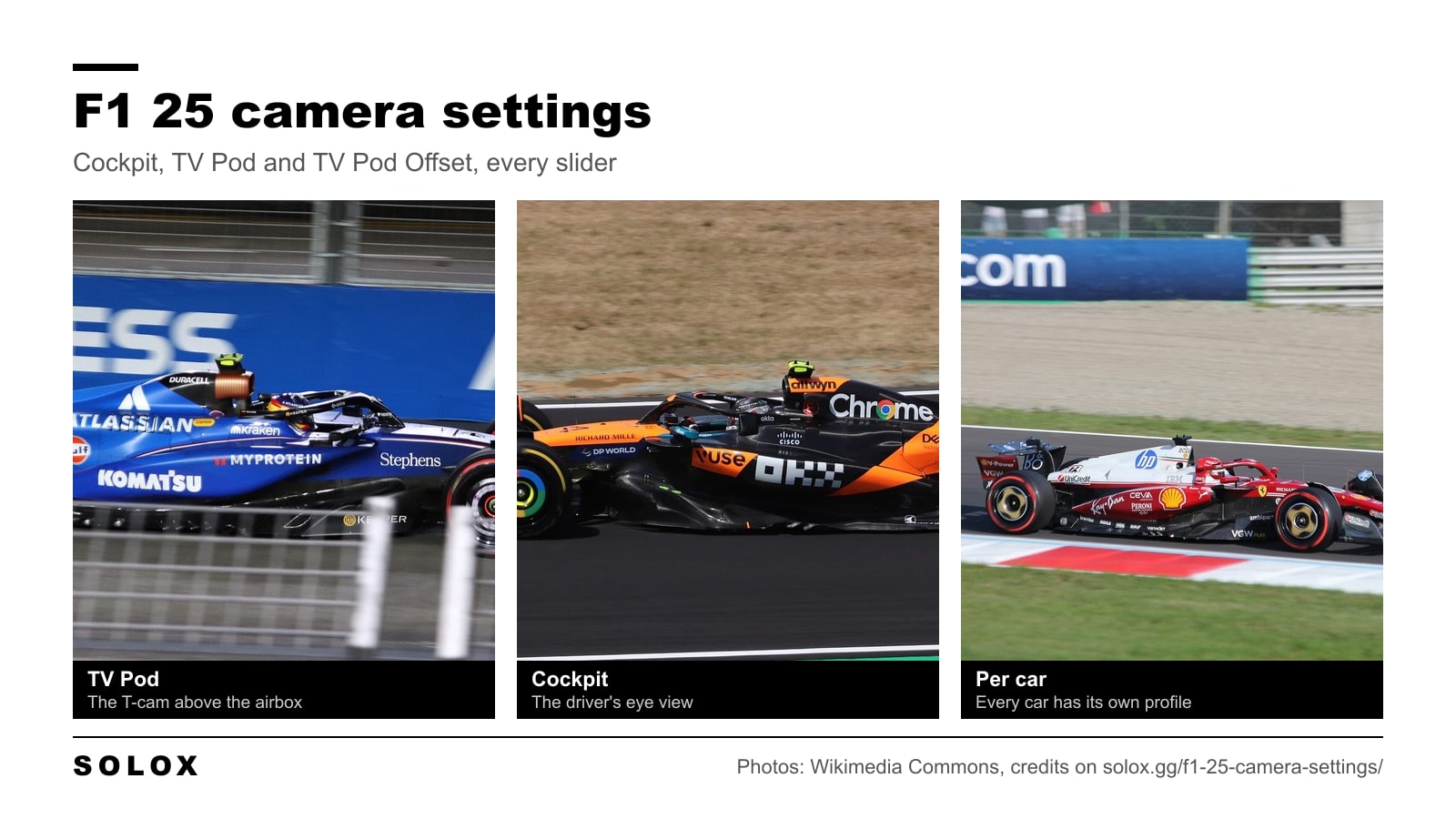
The best F1 25 camera settings for most people are the TV Pod camera with field of view at -10, offset horizontal 2, offset vertical 17, angle -20 and near clip plane 20, with camera shake and camera movement at 0. If you drive from the cockpit, run field of view -12, offset vertical 13 and angle -16 with the halo column off.
Those values come from THOMB's F1 25 camera guide on YouTube, published on 29 May 2025. I read them off the menu he shows on screen. I have not tested them in the game myself, so treat the numbers as his and the commentary as mine.
The camera is half of the job. The other half is the car, and my F1 25 setups for every track cover that.
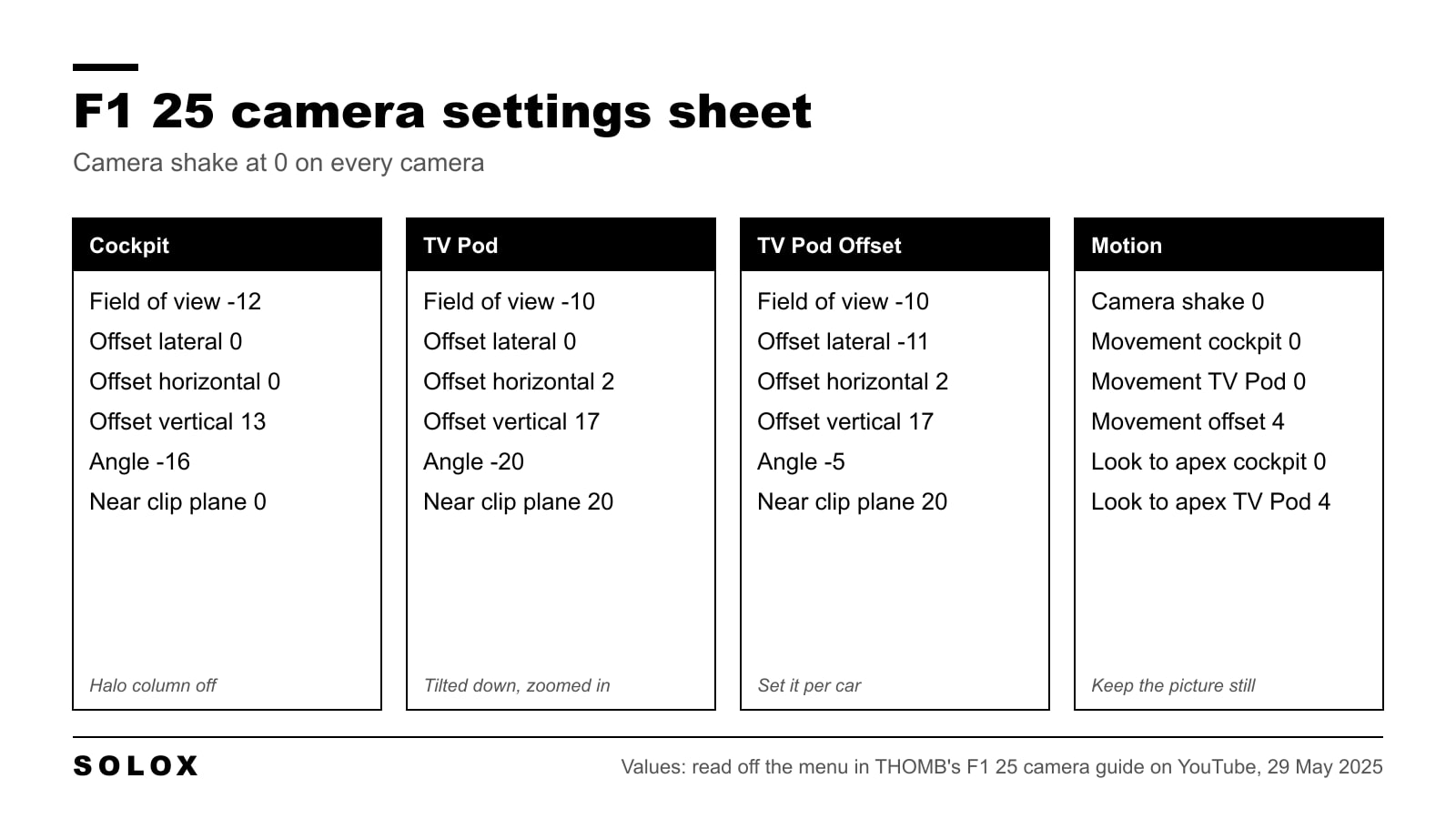
F1 25 camera settings: every value
You find these under Settings, then Camera Customisation. Pick the camera first, then set the sliders.
| Setting | Cockpit | TV Pod | TV Pod Offset |
|---|---|---|---|
| Field of View | -12 | -10 | -10 |
| Offset: Lateral | 0 | 0 | -11 |
| Offset: Horizontal | 0 | 2 | 2 |
| Offset: Vertical | 13 | 17 | 17 |
| Angle | -16 | -20 | -5 |
| Near Clip Plane | 0 | 20 | 20 |
| Mirror Angle | 0 | 0 | 4 |
| Camera Shake | 0 | 0 | 0 |
| Camera Movement | 0 | 0 | 4 |
| Look to Apex Limit | 0 | 4 | 4 |
| Halo Column | Off | n/a | n/a |
The halo column setting only matters in the cockpit view. The TV Pod Offset column is what the video shows on one car with Car-Specific Settings turned on, so use it as a starting point and read the per car section below.
Which camera to use
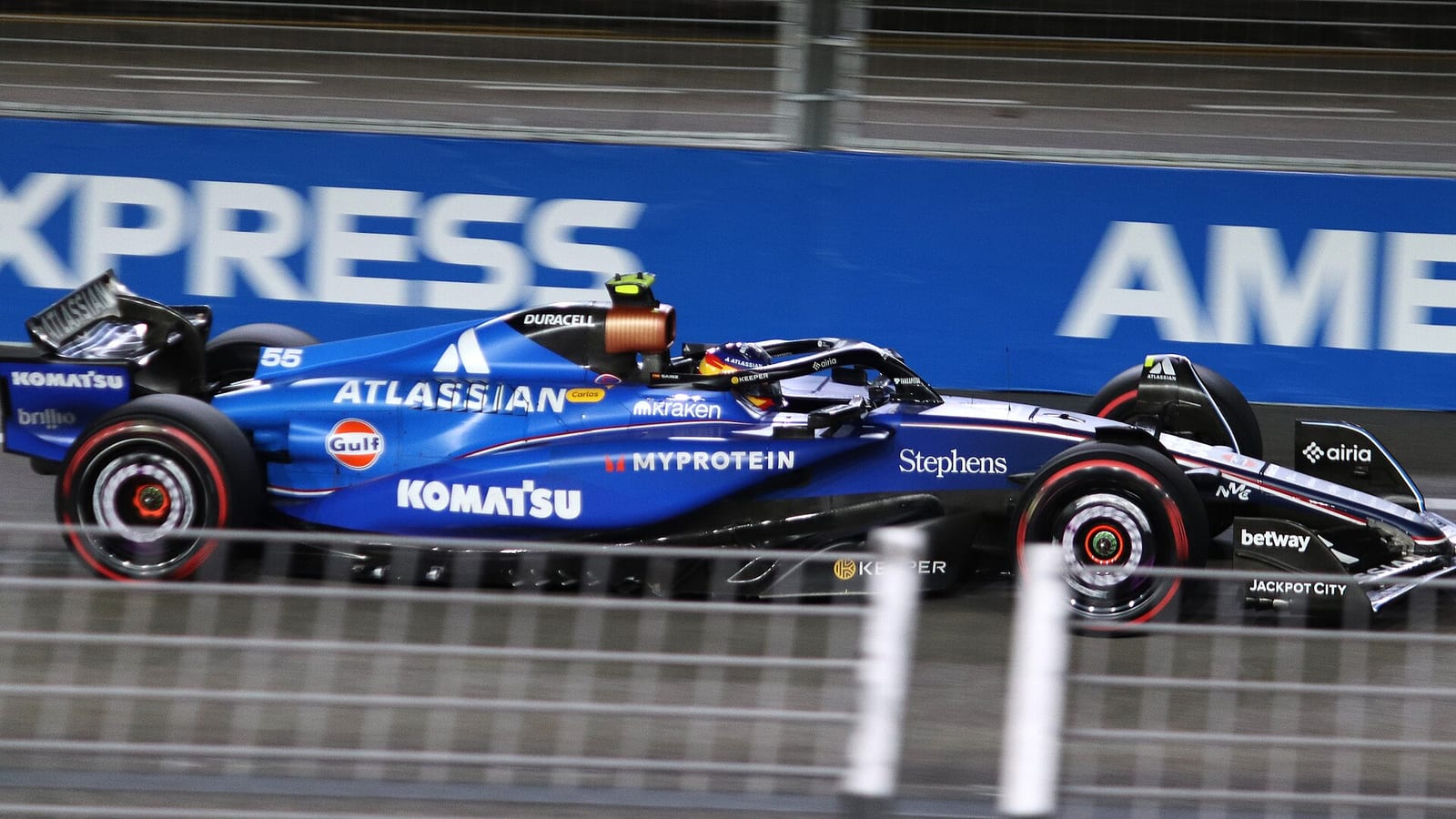
TV Pod is the default for a reason. It sits above the driver's head, so you see both front tyres, the kerbs and the car next to you. Most league racers and most fast time trial laps use it or the offset version.
TV Pod Offset is the same camera moved to the left, the way the real broadcast camera sits on one side of the airbox. Some drivers find the left front easier to place with it. It also means left and right corners look different, and that takes a few sessions to get used to.
Cockpit is the one I would pick on a rig with a wheel, because it is the closest to what you see from a real single seater. You sit low, the halo is in front of you and you cannot see the front wing. It is harder. You have to learn where the car ends by reference, which is exactly what you do in a real car.
On a controller on a TV, start with TV Pod. The pad itself needs setting up too, and my F1 25 controller settings cover that.
What each camera setting does
- Field of View. How wide the picture is. Lower numbers zoom in. The track ahead gets bigger and braking points are easier to judge, but you lose some sense of speed and some side vision.
- Offset: Lateral. Moves the camera left or right. Leave it at 0 on Cockpit and TV Pod so the picture stays symmetric.
- Offset: Horizontal. Moves the camera forward or back along the car.
- Offset: Vertical. Moves the camera up or down. Higher shows more track over the nose and the halo.
- Angle. Tilts the camera up or down. A negative angle with a high camera points the view at the track just ahead of the front wheels.
- Near Clip Plane. How close to the lens the game stops drawing things. A high value removes bodywork that sits right in front of the camera.
- Mirror Angle. Tilts what the mirrors show.
- Camera Shake. Vibration over bumps and kerbs. Set it to 0.
- Camera Movement. How much the camera moves against the car under braking and cornering loads.
- Look to Apex Limit. How far the camera turns into the corner as you steer.
- Halo Column. Shows or hides the centre pillar of the halo in the cockpit view.
The logic behind the fast values is simple. A high camera tilted down gives a clear view of the apex. A lower field of view makes the corner bigger on screen. No shake and little movement keep the picture still, so the only thing that moves is the car against the track. That is the information you drive on.
Realistic cockpit camera settings
If you want the cockpit to look like a real onboard, the second set of values I checked comes from Sim Racing Setup, last updated on 26 May 2025. They list a realistic set and a single monitor set. I have put THOMB's cockpit values next to them.
| Setting | Realistic | Single monitor | THOMB |
|---|---|---|---|
| Field of View | -11 | -4 | -12 |
| Offset: Lateral | 0 | 0 | 0 |
| Offset: Horizontal | 4 | 4 | 0 |
| Offset: Vertical | 5 | 5 | 13 |
| Angle | -9 | -9 | -16 |
| Near Clip Plane | 0 | 0 | 0 |
| Mirror Angle | 0 | 0 | 0 |
| Camera Shake | 0 | 0 | 0 |
| Camera Movement | 10 | 10 | 0 |
| Look to Apex Limit | 10 | 5 | 0 |
| Halo Column | On | Off | Off |
The two sources disagree, and that is fine. The realistic set sits lower in the car with the halo column on and lets the camera move, which is closer to a helmet camera. THOMB's set sits higher, tilts down more and locks everything, which is built for seeing the track.
My view: on a rig with a wheel, start from the realistic set and bring camera movement down if it bothers you. A real driver's head does move, but your eyes correct for it. A screen does not do that for you. On a single monitor a field of view near -4 shows more of the mirrors and the cars beside you.
Camera settings per car, Williams included
The Camera Customisation menu has two lines at the top that matter here: Car-Specific Settings and Edit Camera Settings.
With Car-Specific Settings disabled, Edit Camera Settings shows Global and one set of values applies to every car. With it enabled, you can pick a team in Edit Camera Settings and save values for that car alone. If you turn it back off, the game uses your global values again, even if you saved car-specific ones.
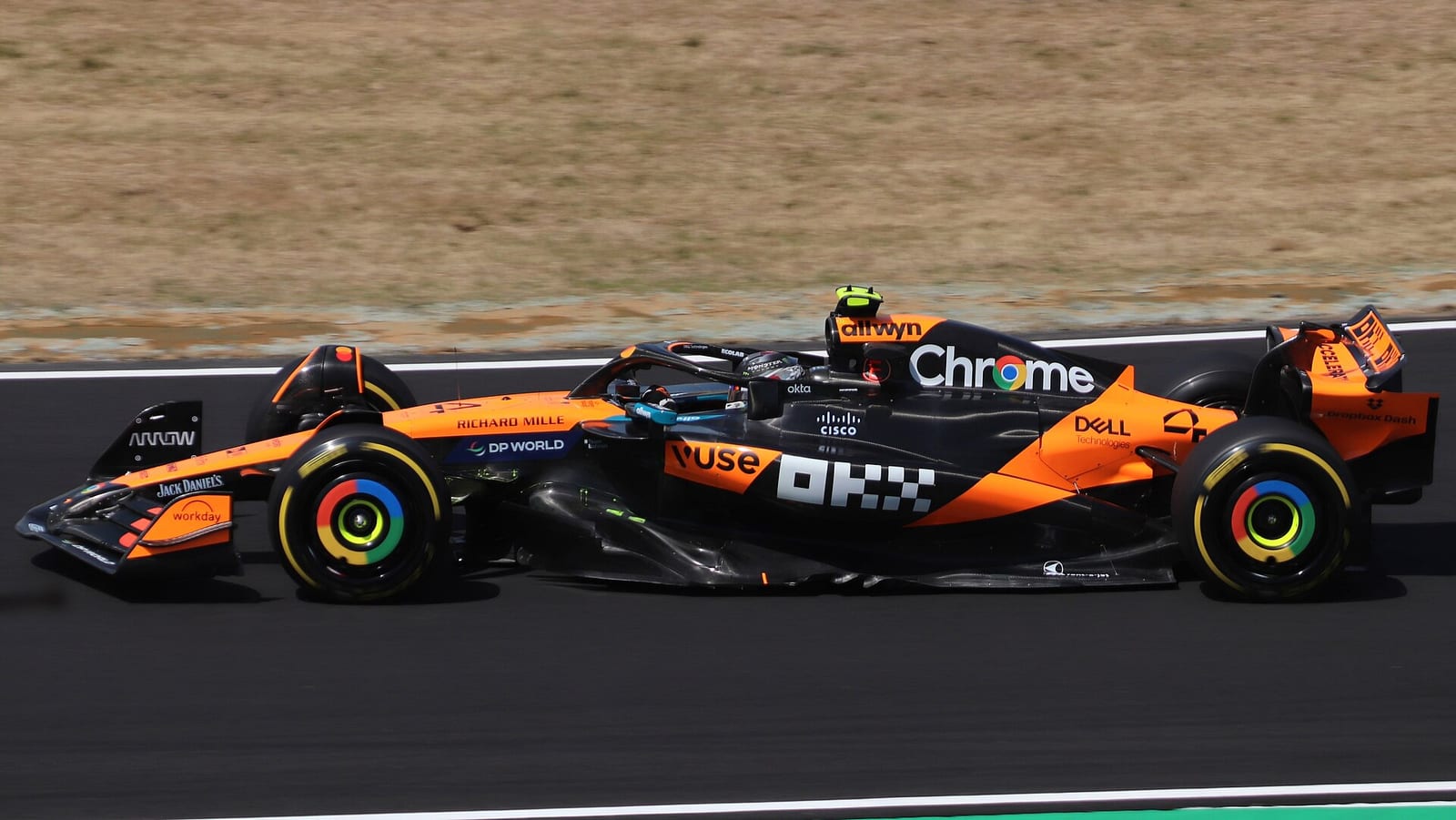
This matters because the cars are not the same shape. The airbox, the halo fairing and the nose differ from team to team, so the same offset numbers put the camera in a slightly different place on each car. The offset camera is the one where you notice it most.
A lot of people search for Williams camera settings in particular. I looked for a Williams set I could verify against a second source and did not find one, so I am not going to print numbers I cannot stand behind. This is how I would set the Williams, or any other car:
- Set your global values from the table above and drive three laps in the Williams.
- If the view is fine, stop. The global values are enough.
- If something is in the way, enable Car-Specific Settings and choose Williams under Edit Camera Settings.
- Change one slider at a time. Offset: Vertical first, in steps of 2, until the top of the halo or the airbox is out of the way.
- Then Angle, in steps of 2, until the horizon sits in the top third of the screen.
- On TV Pod Offset, adjust Offset: Lateral last, until you see the inside of the left front tyre.
Do the same for the car you drive in career or My Team. It takes ten minutes per car and you only do it once.
How to test a camera change
Change the camera in Time Trial, not in a race weekend. Use a track you know well so the only new thing is the view.
Give every change at least ten laps. A new camera always feels wrong at first, because your braking references move on the screen. Judge it on consistency, not on one lap. If your lap times spread over three tenths with the old camera and one tenth with the new one, keep the new one.
Once the view is settled, move on to the car. The Bahrain setup and the Australia setup are a good place to start, because the season opens there. On a wheel, sort the force feedback as well. My Logitech RS50 settings by game include F1 25.
If you still play the older game, the menu is the same and my F1 22 camera settings are here. For Gran Turismo, see the best GT7 camera settings.
FAQ
What are the best camera settings in F1 25?
For most players, the TV Pod camera with field of view -10, offset lateral 0, offset horizontal 2, offset vertical 17, angle -20 and near clip plane 20, with camera shake and camera movement at 0. Those are the values THOMB shows in his F1 25 camera guide.
What camera do the fastest F1 25 players use?
Mostly TV Pod or TV Pod Offset. Both sit above the driver and show the front tyres and the kerbs, which makes the car easier to place than from the cockpit.
What are the best cockpit camera settings in F1 25?
For visibility: field of view -12, offset vertical 13, angle -16, everything else at 0 and the halo column off. For realism, Sim Racing Setup lists field of view -11, offset horizontal 4, offset vertical 5, angle -9 and the halo column on.
What are the best Williams camera settings in F1 25?
Start from the global TV Pod or TV Pod Offset values in the table. If the view does not suit the Williams, enable Car-Specific Settings, select Williams under Edit Camera Settings and adjust offset vertical and angle in steps of 2. I have not found a Williams-only set that two sources agree on.
Should camera shake be on or off in F1 25?
Off, which means 0. Shake makes the picture move without telling you anything about the car. Keep camera movement at 0 or low for the same reason.
What does Look to Apex Limit do?
It turns the camera into the corner as you steer, up to the limit you set. A small value helps you see the apex in slow corners. A big value can feel like the car is sliding when it is not, so keep it low.
Is the cockpit camera slower than TV Pod?
It is harder, not slower by rule. You see less of the car and the track, so you need more laps to learn your references. If you drive on a rig and want it to feel like a real car, it is worth the time.