
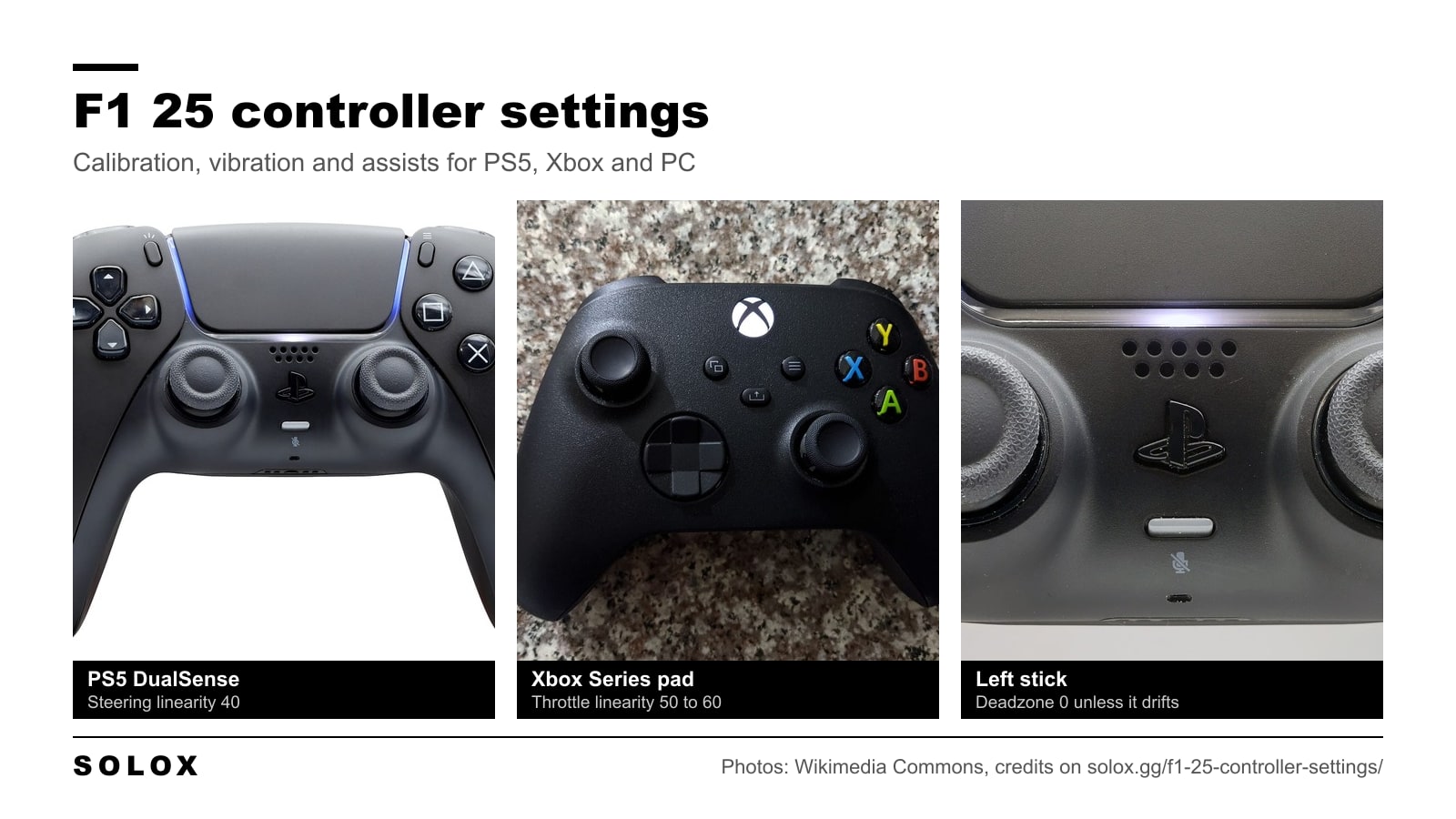
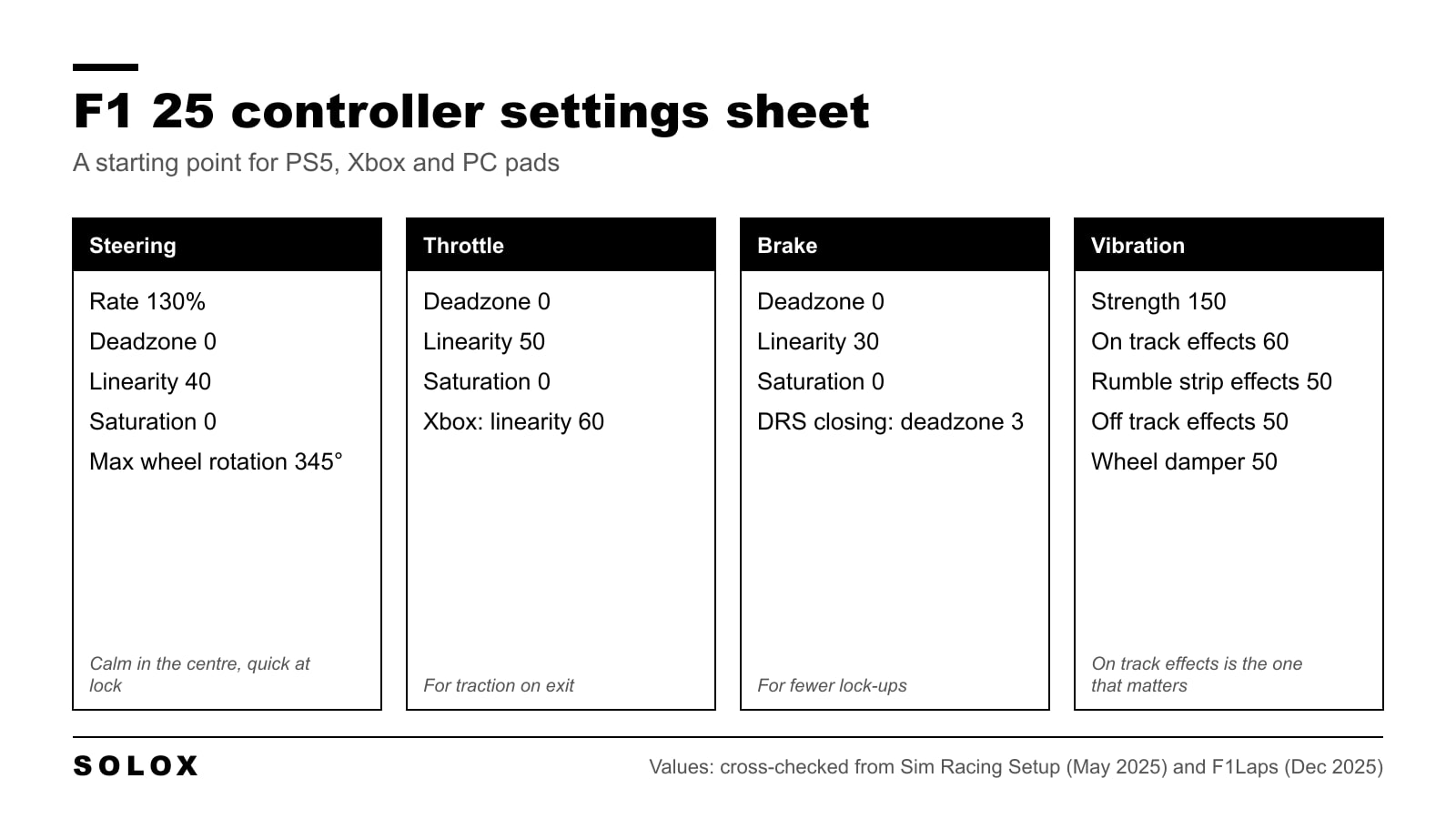
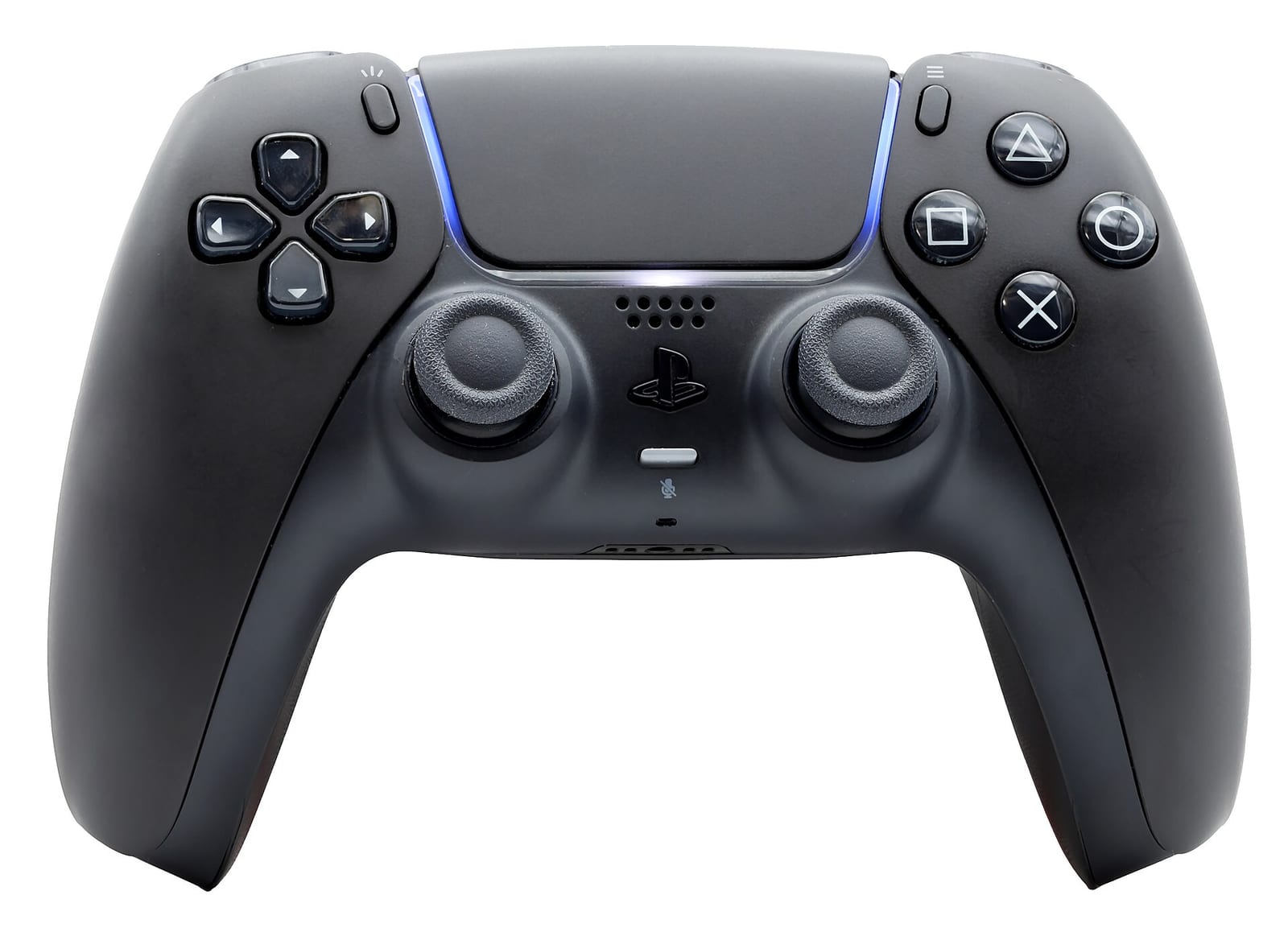
The best F1 25 controller settings to start from are steering rate 130%, steering linearity 40, throttle linearity 50, brake linearity 30, every deadzone and saturation at 0 and Maximum Wheel Rotation at 345 degrees. That works on a PS5 DualSense, an Xbox pad and a controller on PC.
The values come from two published guides that I cross-checked: Sim Racing Setup, updated on 28 May 2025, and F1Laps, published on 28 December 2025. Where they disagree I show both and tell you which one I would start with. I have not tested these values in the game myself.
Pad settings and car setup work together. A stable rear end matters more on a stick than on a wheel, so pair this with my F1 25 setups for every track.
F1 25 controller calibration settings
Go to Settings, then Controls, Vibration & Force Feedback, pick your controller and open Calibration.
| Setting | Start here | Sim Racing Setup | F1Laps |
|---|---|---|---|
| Steering Rate | 130% | 130% | 115 to 130% |
| Steering Deadzone | 0 | 0 | 0 |
| Steering Linearity | 40 | 40 | 30 to 40 |
| Steering Saturation | 0 | 0 | 0 to 20 |
| Throttle Deadzone | 0 | 0 | 0 |
| Throttle Linearity | 50 | 50 | 50 to 60 |
| Throttle Saturation | 0 | 0 | 0 |
| Brake Deadzone | 0 | 5 | 0 to 3 |
| Brake Linearity | 30 | 35 | 25 to 30 |
| Brake Saturation | 0 | 0 | 0 to 20 |
Steering: rate, linearity and saturation
Steering Linearity is the most important value on a pad. At 0 the stick maps one to one, so a small movement at 300 km/h is a big steering input. At 40 the first part of the stick travel does less, and the car stops twitching on the straights and in fast corners. Both guides land between 30 and 40.
Steering Rate is how fast the game follows your stick. At 130% the front wheels reach full lock quickly, which you need for chicanes and for catching a slide. F1Laps gives 115 to 130%. If the car feels nervous in direction changes, come down to 115%.
Steering Saturation makes the stick reach full lock earlier. Leave it at 0. Raise it only if you cannot get enough lock in a hairpin like the Monaco one.
Steering Deadzone stays at 0. Check the input test on the calibration screen: if the steering bar moves when you are not touching the stick, raise the deadzone one point at a time until it stops.
This is the same logic as in a real car, just with a much shorter lever. In a single seater your hands move a few degrees in a fast corner. A thumb on a stick cannot be that precise, so the linearity curve does it for you.
Throttle and brake
Throttle Linearity 50 gives you more trigger travel in the first part of the throttle, which is where the rear tyres let go. Both guides agree on 50, and F1Laps goes up to 60. F1Laps also mentions a faster option with linearity between 0 and 30 for drivers who already have smooth trigger control. Do not start there.
Brake Linearity 30 softens the first part of the brake trigger. Sim Racing Setup runs 35, F1Laps 25 to 30. I would start in the middle at 30. If you lock the fronts when you start trail braking into slow corners, go to 35.
Brake Deadzone is the one where the sources differ most: 5 at Sim Racing Setup, 0 to 3 at F1Laps. Start at 0. If DRS closes on the straights without you touching the brake, the trigger is sending a small signal at rest. Raise the deadzone to 3, then 5.
Saturation stays at 0 on both pedals, so you use the whole trigger.
On an Xbox pad, F1Laps reports that players find the triggers more sensitive and suggests adding 10 to 15 points of throttle linearity over the PlayStation value. That would put you at 60.
Vibration and force feedback settings
These are in the same Controls, Vibration & Force Feedback menu, under the controller's settings.
| Setting | Start here | Sim Racing Setup | F1Laps |
|---|---|---|---|
| Vibration & Force Feedback | On | On | On |
| Vibration & Force Feedback Strength | 150 | 150 | 130 to 150 |
| On Track Effects | 60 | 100 | 40 to 60 |
| Rumble Strip Effects | 50 | 90 | 30 to 50 |
| Off Track Effects | 50 | 65 | 30 to 50 |
| Wheel Damper | 50 | 50 | 10 to 50 |
| Maximum Wheel Rotation | 345° | 345° | 300 to 360° |
The two guides agree on strength, damper and rotation and disagree on the effects. Sim Racing Setup runs them high. F1Laps keeps them moderate.
I would start moderate. On Track Effects is the useful one: the pad vibrates more as the tyres get close to the limit, and that is the only grip information a controller can give you. If the kerbs and the grass shake the pad just as hard, you cannot read it. Keep rumble strips and off track at 50, and bring On Track Effects up if you cannot feel the slide coming.
Maximum Wheel Rotation matters even though you have no wheel. It sets how much steering angle the game expects, and the default is slow for a stick. Both guides lower it: 345 degrees in one, 300 to 360 in the other.
Which assists to use on a controller
Assists are in Settings, then Assists. This part is my own view.
- Braking assist and steering assist: off. They drive the car for you and you learn nothing.
- Racing line: corners only. Use it to learn braking points on a new track, then turn it off on tracks you know.
- Anti-lock brakes: on at first. A trigger has about a centimetre of travel. Holding a brake at the limit of locking with that is hard. Turn ABS off when your laps are consistent.
- Traction control: medium. Full traction control costs a lot of time on exit. Medium still saves you from the worst wheelspin. F1Laps recommends the same.
- Gearbox: manual. Short shifting out of slow corners is the best traction control you have. Suggested gear helps while you learn.
- ERS and pit assists: off once you are comfortable with the buttons.
Change one assist at a time and give it a full session. If you remove three at once and spin, you do not know which one you needed.
How to test your settings
Use Time Trial on a track you know. Bahrain is a good one because it has heavy braking zones and slow traction corners, which test both triggers. My F1 25 Bahrain setup gives you a stable car for it.
Do ten laps and watch three things:
- Straights. If the car weaves, raise steering linearity by 5.
- Corner exit. If the rear snaps as you pick up the throttle, raise throttle linearity by 5.
- Braking. If the fronts lock at the end of the braking zone, raise brake linearity by 5.
Change one value, do ten more laps and compare the spread of your lap times, not the best one.
Set the view as well. On a pad on a TV, the TV Pod camera is the easiest to place the car with, and my F1 25 camera settings have the values.
If you play other games on the same pad, I have the same kind of page for GT7 controller settings and Forza Horizon 6 controller settings. For the older F1 game, see the F1 22 calibration settings.
FAQ
What are the best controller settings for F1 25?
Steering rate 130%, steering linearity 40, throttle linearity 50, brake linearity 30, deadzones and saturation at 0 and Maximum Wheel Rotation at 345 degrees. Vibration strength 150 with On Track Effects around 60.
What steering linearity should I use in F1 25?
Between 30 and 40 on a controller. Start at 40. Go lower if the car feels slow to turn in, higher if it weaves on the straights.
Are F1 25 controller settings the same on PS5 and Xbox?
The menu and the values are the same. The one difference people report is the Xbox triggers feeling more sensitive, so try throttle linearity 60 on Xbox instead of 50.
Why does my DRS keep closing in F1 25?
The brake trigger is probably sending a small signal when you are not pressing it, and any brake input closes DRS. Raise Brake Deadzone to 3, and to 5 if it still happens.
Should I use traction control on a controller in F1 25?
Yes, medium is a good level on a pad. Full traction control is slow on corner exit. Turning it off completely on triggers takes a lot of practice and a setup with a stable rear.
What Maximum Wheel Rotation should I use on a controller?
Around 345 degrees, anywhere from 300 to 360. Lower values make the steering react faster to the stick.
Can you be fast on a controller in F1 25?
Yes. The published guides for this game agree that pad handling is better than in F1 24. A wheel gives you more precision and more feedback, but with a sensible linearity curve and manual gears a pad is competitive in most online lobbies.