
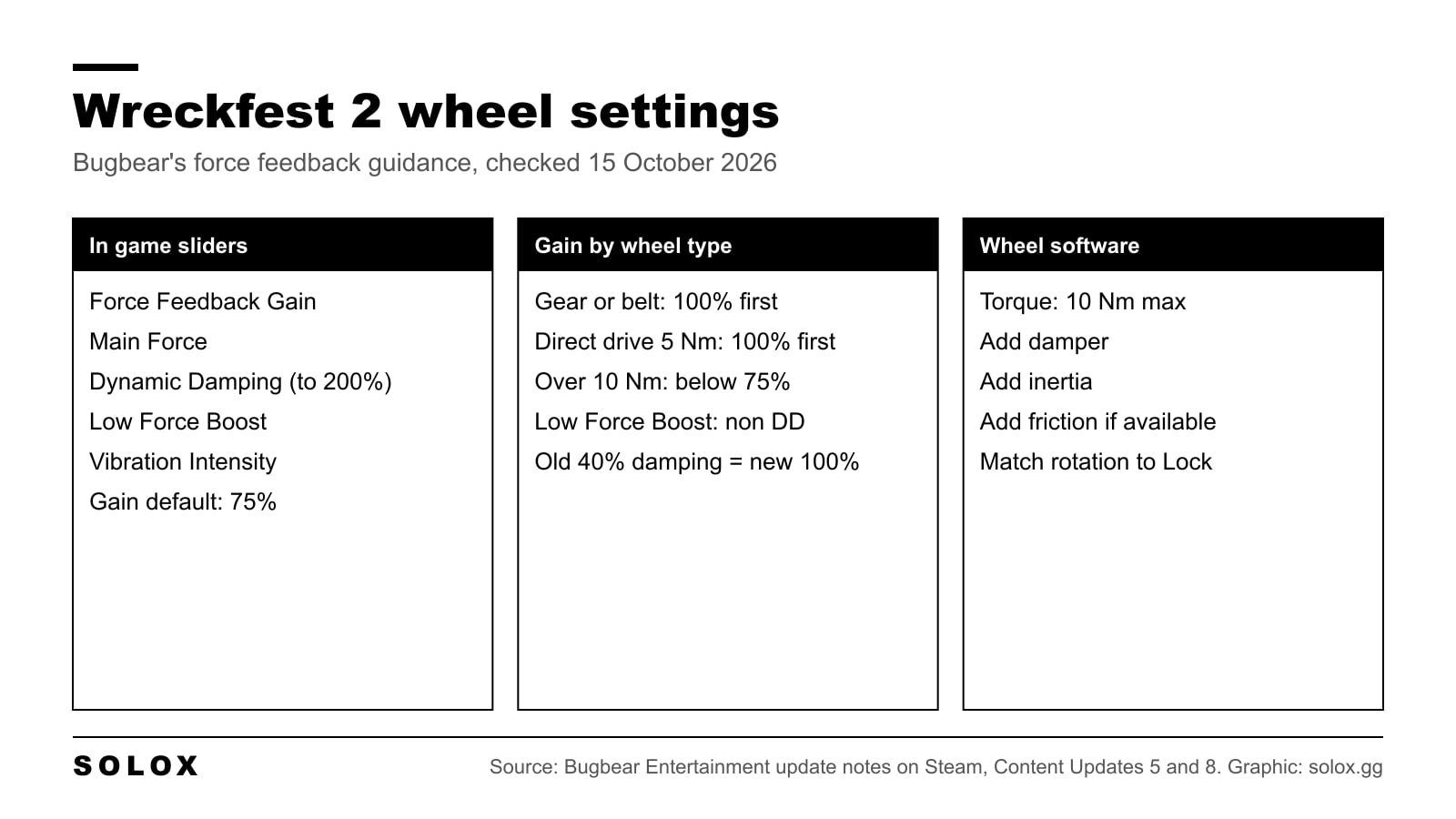
Wreckfest 2 wheel settings live in Options, Settings, Controller. Nobody publishes a per-wheel profile for this game yet, not Bugbear, not Logitech, Fanatec, MOZA or Thrustmaster. What Bugbear does publish is clear guidance by wheel type: gain at 100% for gear, belt and small direct drive wheels, below 75% for direct drive over 10 Nm, and never more than 10 Nm in the wheel software.
Checked on 15 October 2026 against every Wreckfest 2 announcement and update note on Steam from March 2025 to the Content Update 9 changelog (15 October 2026), the Steam store page, and Logitech's RS50 in-game settings table. Content Update 9 reworked handling and tyre physics but lists no change to the force feedback settings. Where something is not published, I say so instead of filling the gap.
Which wheels work with Wreckfest 2
There is no official supported wheel list, and no brand is named in Bugbear's notes or on the store page. What is on record:
- Wreckfest 2 is in Early Access on Steam, Windows only. A PlayStation page exists, but there is no console version to set up yet.
- Steam lists it as Partial Controller Support, with Gamepad Recommended and DualSense support.
- The force feedback notes are written for DirectInput devices in general. Content Update 8 made buttons up to 128 work, for wheels and button boxes with more than 32.
- Since Update 2 in April 2025 the game ignores input from devices it does not recognise, and Update 1 stopped it auto binding them. Bugbear does not say what counts as unknown.
So plug the wheel in before you launch and check it in the Controller menu. If you are still picking a wheel for this, my G29 vs G923 comparison covers the two most common budget choices.
The in-game wheel and FFB menu
Go to Options, Settings, Controller, pick your wheel and set Controller Type to Wheel. The names below come from Bugbear's notes and from a Content Update 5 guide that lists the full menu. Bindings have their own tab.
| Setting | What it does |
|---|---|
| Force Feedback Gain | Strength of the signal sent to your wheel |
| Main Force | Forces from the front tyres through the suspension geometry. Most of the detail is here |
| Dynamic Damping | The wheel resists turning more as speed rises, and reacts to the car rotating with counter steer |
| Low Force Boost | Amplifies the low part of the signal so gear and belt wheels feel fuller |
| Vibration Intensity | Road detail and effects (engine, gearbox, road noise). Added in Content Update 8, and named this way in the notes |
| Steering Lock | Steering rotation in game |
| Steering Dead Zone, Saturation, Sensitivity | Shape of the steering input |
| Steering Speed Sensitivity | Changes the steering response with speed |
The first four definitions are Bugbear's, trimmed. Bugbear does not publish ranges or defaults, with two exceptions. Force Feedback Gain defaults to 75% (Content Update 5 Patch 1). And Dynamic Damping now goes to 200%, where the old default of 40% became the new 100% in Content Update 8.
That last change matters if you copy numbers. Any damping value written before 30 June 2026 is on the old scale.
Content Update 1 added a setting to hide the driver and steering wheel in first person cameras. With a real wheel in front of you, I would hide the virtual one.
Gain by wheel type, from Bugbear
These are the only Wreckfest 2 numbers from the people who make the game, in the Content Update 5 notes and its Patch 1 in December 2025.
| Your wheel | Bugbear's guidance |
|---|---|
| Gear or belt driven (Logitech G29, G923, Thrustmaster T300 and similar) | Raise Force Feedback Gain to 100% first |
| Direct drive around 5 Nm | Raise Force Feedback Gain to 100% first |
| Direct drive over 10 Nm | Go below the 75% default, unless you like it really strong |
| Any wheel | Do not set more than 10 Nm in your wheel software unless you know what you are doing |
| Any wheel | Add damper and inertia in the wheel software, and friction if you have it |
Low Force Boost is the other one Bugbear points at a wheel type: it is there for non direct drive wheels, though Bugbear says direct drive owners can experiment with it too. Content Update 8 rewrote it so it pushes a gear or belt wheel much closer to its full cornering force more often. So on a G29, a little goes a long way now.
Bugbear gives no guidance for the gap between 5 and 10 Nm, which is where a Logitech RS50 (8 Nm) sits. Start at the 75% default there and use the method further down.
Take the 10 Nm cap seriously. Bugbear warns to expect strong, sudden force feedback, and a head on hit is exactly that. Keep your thumbs on the outside of the rim, not hooked through the spokes. Same rule as in a real car when you know you are about to hit something.
What to set in your wheel software
Bugbear's note from Content Update 5 is the key one: the game sends no general damper of its own. If the wheel feels too easy or unnatural to turn, add damper and inertia in the wheel software, and friction if your base has it. Bugbear adds that this also helps against oscillation on strong bases. Content Updates 6 and 8 have since reworked the damping logic in game, so add a little at a time.
No wheel maker publishes Wreckfest 2 values, so these are the knobs, not numbers to copy.
| Software | Torque cap | Damper, inertia, friction | Rotation |
|---|---|---|---|
| Logitech G HUB, RS50 and G PRO | Strength | Dampener | Operating Range |
| Logitech G HUB, G29 and G923 | Not needed, both are well under 10 Nm | None in the G HUB settings a Content Update 5 guide lists | Operating Range |
| MOZA Pit House | Maximum output torque limit | Wheel damper, Natural inertia, Wheel friction | Maximum steering angle |
| Fanatec App | FFB, and the base torque mode | NDP, NIN, NFR | SEN |
| Thrustmaster Panel, T598 | Master Gain | Wheel Damper, Inertia, Friction | Rotation |
| Thrustmaster Panel, T300 and TX | Overall strength | See below | Rotation |
On a G29 or G923, keep the Centering Spring off in G HUB. It is a fake force that pulls to the middle and hides what the front tyres are doing.
On a belt Thrustmaster like the T300, the Damper slider in the Panel scales the damper effect a game sends, and Bugbear says Wreckfest 2 sends none. A Content Update 5 guide agrees the game does not use the Panel's Spring and Damper.
Match the rotation in the software to Steering Lock in game. If they disagree, the virtual wheel turns faster or slower than yours.
NDP, NIN and NFR are Fanatec's names for damper, inertia and friction. If you have not been through Pit House before, my MOZA Pit House settings guide walks through every tab, and the My Thrustmaster Panel guide covers the Thrustmaster side.
Logitech G29, G923, G PRO and RS50
There is no Logitech profile for Wreckfest 2. Logitech's RS50 table has the original Wreckfest: RS mode, FFB Filter 8, Dampener 70, angle per car on PC. Logitech does not say it carries over, and Wreckfest 2 has different force feedback sliders, so I would not copy it. The full Logitech list is in my RS50 settings by game page.
For a G29 or G923, Bugbear's guidance is the starting point: gain 100%, then Low Force Boost, which exists for exactly this kind of wheel. TrueForce support is not mentioned in any Wreckfest 2 note I found.
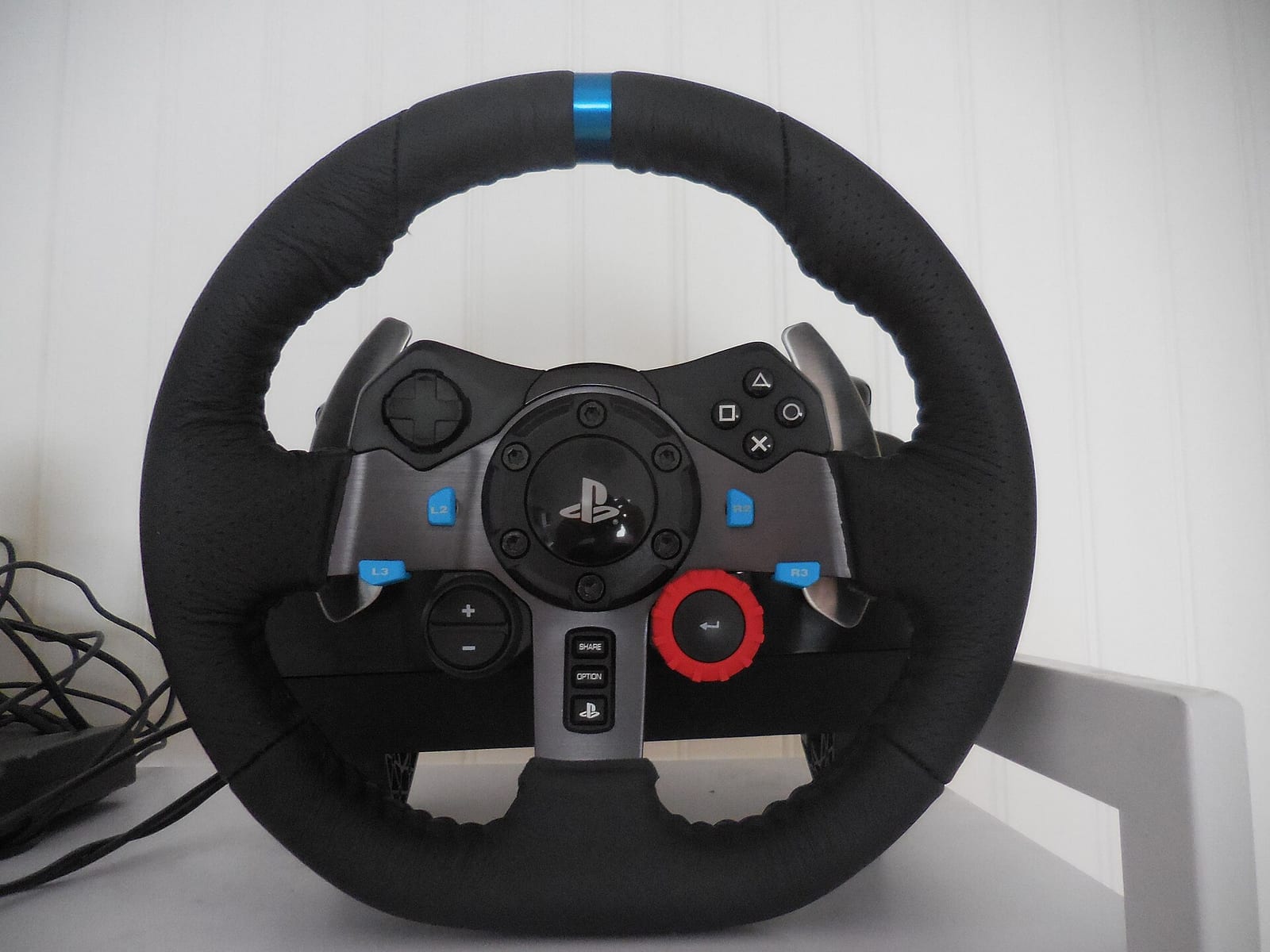
One independent guide does publish full G29 and Thrustmaster values for Wreckfest 2. It is a single source written for Content Update 5, before the damping range doubled and Vibration Intensity arrived, and no second guide agrees with it. So its numbers are not here.
How I would find my own settings
This is my method, not published values.
- Wheel software first. Set the torque cap at or under 10 Nm, rotation to match Steering Lock, and a little damper and inertia.
- In game, gain at Bugbear's figure for your wheel type. Main Force and Dynamic Damping at their defaults.
- Take a heavy car to a fast, bumpy track and drive a few laps. If the wheel goes solid in the long corners and stops telling you anything, you are clipping. Lower gain until the detail comes back.
- Then Main Force for the detail and Dynamic Damping for the weight in the corners. Change one at a time, five laps between changes.
- On a gear or belt wheel, add Low Force Boost last, in small steps, until the dead feeling around the centre goes away.
What you want to feel is the front tyres. When the car starts to slide and the wheel goes light, that is your warning. If a big strength setting hides it, you are slower, not faster.
Controller and pad settings
Steam marks Wreckfest 2 as Gamepad Recommended, and Content Update 1 added gamepad rumble. The pad uses the same Controller page with Controller Type set to gamepad, and the steering sliders are the ones that matter: Dead Zone, Saturation, Sensitivity and Steering Speed Sensitivity. Bugbear publishes no pad values.
My method: lower the dead zone until the car twitches with your thumb resting on the stick, then go one step back up. If small corrections are too big, lower Sensitivity. If the car is nervous at speed and fine when slow, that is what Steering Speed Sensitivity is for. Since Content Update 9 it eases off when you counter-steer, so big slides are easier to catch on a pad. Since Update 1 you can also rebind the (B) button. If you are playing on a pad because you share a screen, the Wreckfest 2 crossplay and split screen guide covers what works.
Known wheel issues and fixes
These are from Bugbear's own notes.
| Problem | What the notes say |
|---|---|
| Wheel or bindings misbehave | Delete controllers.riub in Documents/My Games/Wreckfest 2/[USERID]/savegame (Update 1, March 2025) |
| Pedals need binding twice | Known issue in the Hotfix 2 notes, March 2025 |
| H shifter drops to neutral | Fixed in Hotfix 2, March 2025 |
| Force feedback limp after a wreck and respawn | Fixed in Update 1, March 2025 |
| Settings lost when plugging the wheel in mid game | Fixed in Update 2 Hotfix 1, April 2025 |
| Force feedback feels weak | Content Update 5 reset gain to 50%, Patch 1 raised the forces. Raise gain yourself |
| Jitter and latency | Cut in Content Updates 5, 6 and 8 |
| Oscillation around the centre | Damping logic improved in Content Update 8. Add damper in the wheel software |
Once the wheel is sorted, the Wreckfest 2 guide has the rest of the game, and the Wreckfest 2 car list tells you which heavy car to test your settings in.
FAQ
What are the best Wreckfest 2 wheel settings?
There are no official per-wheel presets. Bugbear's guidance: gain 100% on gear, belt and 5 Nm direct drive wheels, below 75% on direct drive over 10 Nm, no more than 10 Nm in the wheel software, and damper and inertia added there.
Where are the force feedback settings in Wreckfest 2?
Options, Settings, Controller. Force Feedback Gain, Main Force, Dynamic Damping, Low Force Boost and Vibration Intensity are all on that page.
What are the best Wreckfest 2 settings for a Logitech G29?
There is no Logitech or Bugbear profile for the G29. Bugbear says gear driven wheels should raise gain to 100% first. Then add Low Force Boost in small steps.
Why does my wheel feel weak in Wreckfest 2?
Content Update 5 reset gain to 50% for everyone, and the default is 75%. Raise Force Feedback Gain, and on a gear or belt wheel try Low Force Boost.
Do my Wreckfest 1 wheel settings work in Wreckfest 2?
No source says they carry over, and Wreckfest 2 has different force feedback sliders. Start again from Bugbear's guidance.
Can I play Wreckfest 2 with a controller?
Yes. Steam lists Gamepad Recommended and DualSense support, and gamepad rumble arrived in Content Update 1.